

Main payment flow
From the moment a customer clicks Complete order to the moment their Shopify order shows Paid:1
Customer places an order
The customer picks Pay with eSewa, Khalti, or Fonepay as their payment method on your Shopify checkout page and clicks Complete order. Shopify creates the order in
pending state and lands the customer on the native Shopify thank-you page.2
The app picks up the new order
The app receives the
orders/create webhook, confirms the payment method matches your configured manual method, and mints a PayBridgeNP checkout session for the order amount with the customer’s contact details.3
Customer receives the payment link
PayBridgeNP queues an SMS and an email to the customer with the payment link. Delivery is usually under 30 seconds. Each payment link is valid for 30 minutes; because most reminders fire after that window, every reminder mints a fresh link, so an expired link is never a problem. The customer can also see a Pay now button inside their Shopify customer account order page (if you’ve added the optional Customer Account block - see Install); that button always generates a working link on demand.
4
Customer pays on PayBridgeNP
The customer taps the SMS / email link (or the Pay now button), lands on the PayBridgeNP hosted checkout page, picks a wallet (eSewa / Khalti / Fonepay), and completes the payment.
5
The Shopify order flips to Paid
Once the wallet confirms the payment, the app marks the Shopify order as Paid via the Shopify Admin API. Typical end-to-end latency from wallet confirmation to the order flipping: under 5 seconds.
Where you see it in the admin
Every PayBridgeNP order shows up in the embedded Orders page inside Shopify admin, filterable by payment status: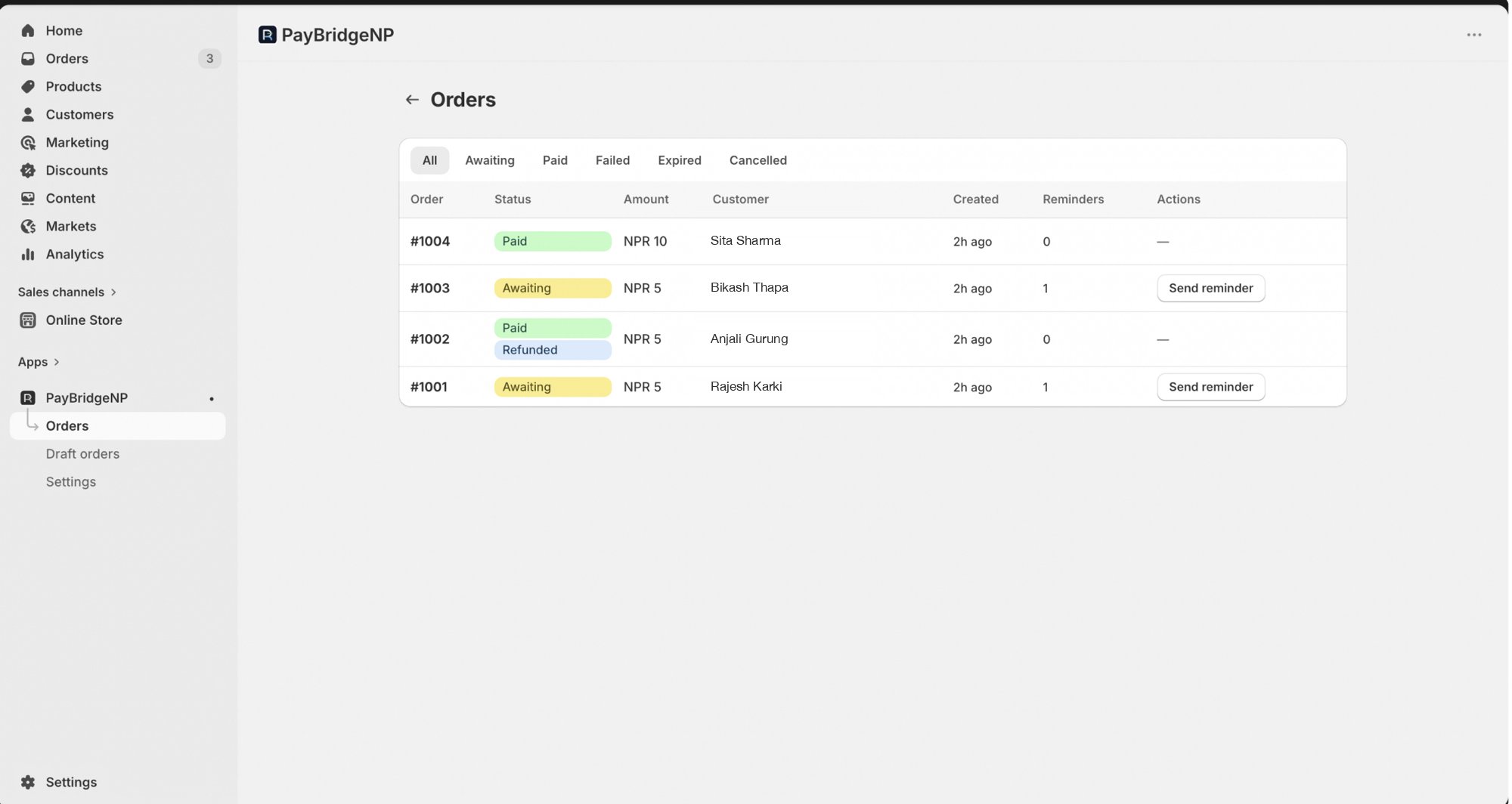
What if the customer leaves without paying?
The app sends branded SMS and email reminders on a fixed schedule - 30 minutes, 4 hours, and 24 hours after the order - and if the customer still hasn’t paid, the order is automatically cancelled and inventory is released 48 hours after it was placed. The reminder schedule and auto-cancel window are fixed; the app settings only let you turn the SMS and email reminders on or off.Refund flows
PayBridgeNP is a manual payment method from Shopify’s point of view. Shopify can’t refund a manual payment method through its built-in admin UI - the money has to come out of PayBridgeNP’s wallet integration, not Shopify’s. The app supports two ways to initiate a refund:Flow A - Merchant clicks Refund in Shopify admin (redirected to the dashboard)
Clicking Refund in Shopify admin does not refund the order in-admin - Shopify can’t refund a manual payment method. The app catches the attempt and points the merchant to the PayBridgeNP dashboard, where the actual refund happens:- Merchant opens the order in Shopify admin and clicks Refund
- The refund is not processed in Shopify. The app catches the attempt and surfaces a banner on the embedded Orders page telling the merchant to complete the refund from the PayBridgeNP dashboard
- Merchant opens the PayBridgeNP dashboard, finds the payment, clicks Refund
- PayBridgeNP processes the refund with the wallet provider
- The app mirrors the refund onto the Shopify order automatically (see Flow B below)
Flow B - Merchant clicks Refund in the PayBridgeNP dashboard
This is the path the app is really built for. Skip Flow A’s first two steps and go straight to the PayBridgeNP dashboard.- Merchant finds the payment in PayBridgeNP dashboard and clicks Refund, entering the amount
- PayBridgeNP processes the refund with the wallet
- The Shopify order automatically flips to Partially refunded or Refunded depending on the cumulative amount
Full vs partial refunds
Draft order payment links
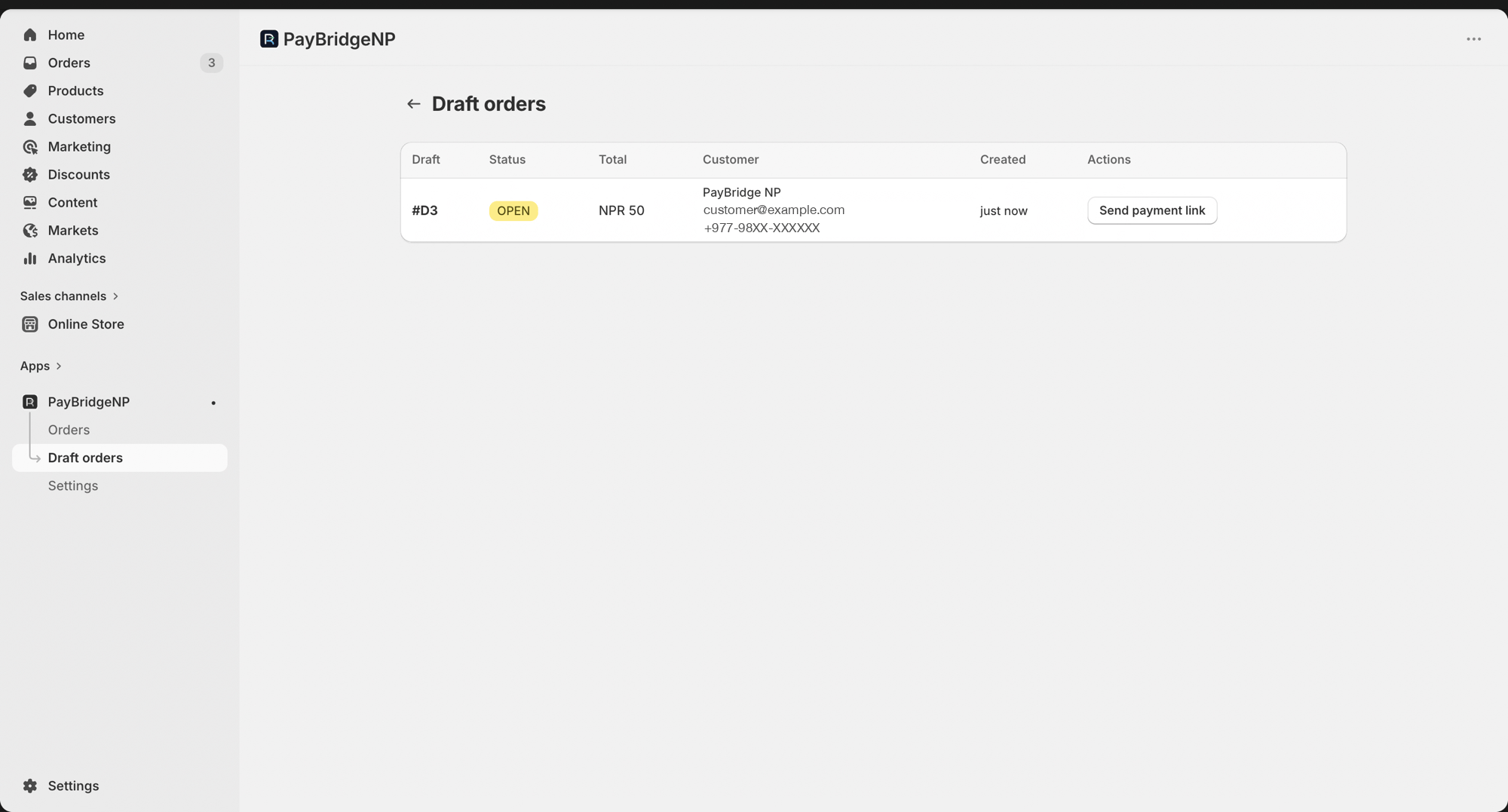
Beyond the main checkout flow, the app supports sending a PayBridgeNP payment link for an existing Shopify draft order. This is useful for over-the-phone orders, B2B invoices, or any case where the buyer isn’t placing the order themselves.- In Shopify admin, build a draft order the usual way: pick a customer (must have email or phone), add products, set a price, save
- In the embedded PayBridgeNP app, go to Draft orders
- Find the draft, click Send payment link
- The customer receives an SMS + email with the PayBridgeNP checkout URL. Once they pay, the order is marked Paid just like the main flow.
What happens on uninstall
When a merchant uninstalls the app from Shopify admin, the app stops accepting webhooks for that shop and stops sending reminders for any orders still awaiting payment. The shop’s stored credentials are cleared. If you later reinstall, paste your PayBridgeNP API key again from the embedded settings page and you’re back in business.If your API key stops working
A revoked, expired, or paused PayBridgeNP key used to fail silently: Shopify would still show the order, but the app could not create a payment for it and nothing recorded that it had tried. Now the app keeps every order it had to refuse for a key problem, and shows you:- a red notice on the app’s Home and Settings pages, with the reason (for example, key revoked). The Connected badge only turns green when the key actually works;
- a Needs attention list on the Orders page with each refused order and a Replay button.
Need more detail?
- Install the app - step-by-step setup
- Troubleshooting - common issues and how to fix them